How to Change Factor Colors
This guide explains how to customize the color for one factor or all factors in a factor set layer.
1. Open the Color Change Dialog
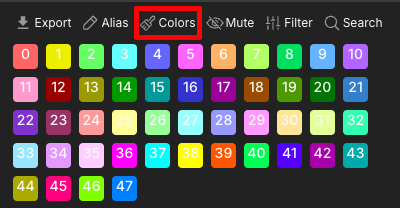
Click Colors in the Factor Drawer toolbar to open the color selection dialog.
2. Change the Factor Colors
The steps below demonstrate how to change the color scheme for an entire factor set or for a single factor anywhere in the set.
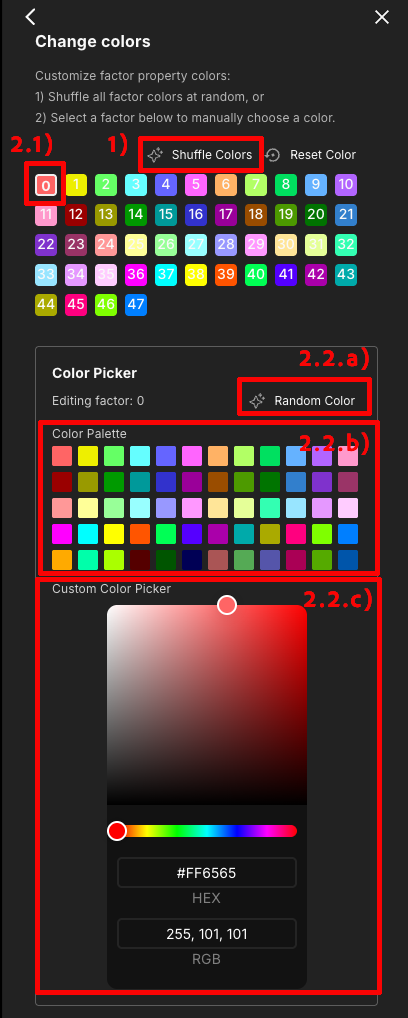
- 1) Change colors for this factor set: Click Shuffle colors to apply a random color palette across all factors in the set.
- 2) Change color for one factor in this factor set:
- 2.1) Choose the factor chip to change its color. In the "Color Picker", you will also see a summary of "Editing factor:
". - 2.2) Choose one of the following methods to set a new color:
- 2.2.a) Click the Random color button to apply a randomly generated color.
- 2.2.b) Manually select a color from the predefined Color Palette.
- 2.2.c) Use the Color Picker or enter a specific HEX/RGB code to customize the color.
- 2.1) Choose the factor chip to change its color. In the "Color Picker", you will also see a summary of "Editing factor:
Related Pages
Concepts
Manual Pages