Factor Drawer
The Factor Drawer is the central workspace for exploring spatial factors, cell types, and high-level spatial pattern decompositions (such as FICTURE inference models). It displays details for the active factor layer, provides tools to customize colors and aliases, highlights spatial patterns on the map/UMAP, and exports marker gene and pseudobulk data.
Interface
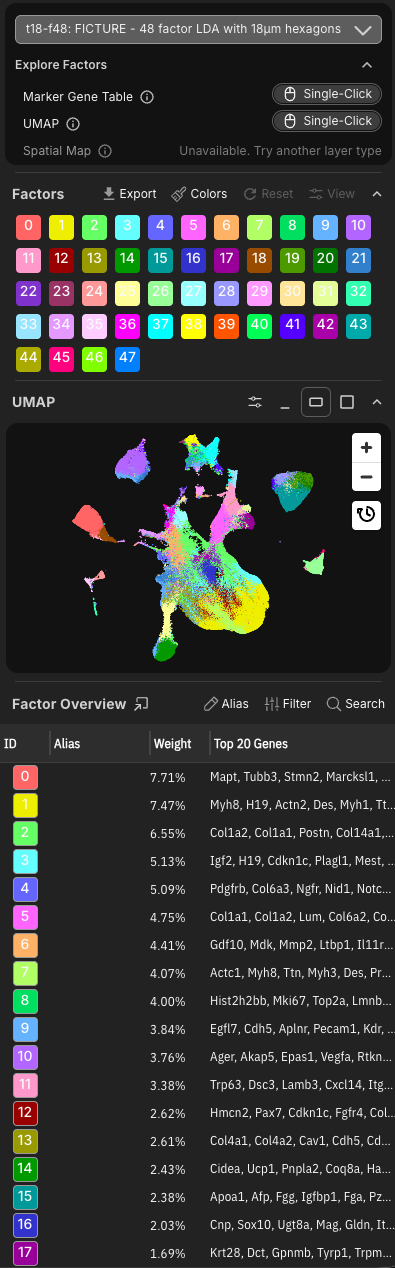
1. Factor Layer Header & Explorer
1.1 Active Factor Selector
Click the factor layer title dropdown at the top of the drawer to switch between loaded factor models (e.g. FICTURE factor sets, cell cluster annotations, or user-defined factor layers).
1.2 Explore Factors Panel
A collapsible summary detailing model capabilities:
- Collapse Button: Collapse or expand the model summary panel.
- Analysis Type Badge: Indicates the underlying computational model (e.g.
Multi-sample FICTURE,Single-sample FICTURE, orCell Type Decomposition). - Marker Gene Interaction Mode: Indicates if pre-computed top marker genes are available.
- UMAP Interaction Mode: Indicates UMAP availability and interaction triggers (Hover preview vs. Double-Click pin).
- Spatial Map Interaction Mode: Switch between Double-Click (pin factor on map) and Hover (live spatial preview) interaction modes.
2. Factor Chips & Control Bar
2.1 Factor Control Bar
Located above the chip grid:
- Export Menu: Download differential expression tables, pseudobulk count matrices, model parameters, summary metrics, and UMAP plots/data.
- Colors Panel: Open the Color Customization dialog to assign custom color palettes, adjust RGB swatches, or shuffle colors.
- Reset Button: Reset factor selection, visibility, and color overrides to default state.
- View Settings: Configure how unselected factors render on the map (Original colors with background opacity vs. Dimmed single color).
- Collapse / Expand Grid: Toggle visibility of the factor chip list.
2.2 Factor Chip Grid
A color-coded grid representing each factor in the model:
- Selection: Click any chip to view its details and top driver genes in the bottom panel.
- Visibility Checkboxes: Toggle individual factor checkboxes to show or hide specific factors on the spatial map.
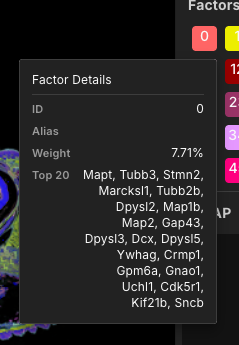
- Factor Summary Card: Hovering over a factor chip displays a summary card with its alias name, relative weight proportion, and top driver genes.
3. Interactive UMAP Panel
Renders an interactive UMAP projection (if available) showing relationships between spatial factors or cell types. Hovering or clicking points highlights corresponding spatial domains on the main map.
4. Factor Details Panel (Bottom Section)
4.1 Control Panels
- Alias: Choose to load AI-inferred alias or upload/clear/export alias. When AI-inferred alias is available, the "Alias" button is shown in blue.
- Gene Group Mode (for single-factor table): Toggle to enable gene group mode. In gene group mode, users can select multiple genes and combine them into one layer with the same color.
- Search: Search for factor or gene by symbol using the default standard search, with an optional Match Case mode, or use Codex Search with command lines.
- Filter: Filter factor or gene by specific columns using the default standard filter, or use Code Filter with code.
- Export (TSV): Download the table.
4.2 Factor Overview Table (Default Mode)
By default, the bottom panel displays a summary table of all factors:
- Columns: Factor ID, Alias (editable), Relative Weight, Top Marker Genes.
- Alias Editing: Click the edit icon next to any alias to assign human-readable labels (e.g. naming
Factor 12asPodocytesorProximal Tubule). - Column Sorting: Sort factors by ID, Weight, or Name.
4.3 Single-Factor Table
Clicking a specific factor chip switches the bottom panel to single-factor breakdown mode:
- Header Controls: Displays the selected factor title, color tag, and navigation back button.
- Top Genes Tab: Sortable table of top driver genes for the factor with fold-change, weight, and p-values. Features inline Filter and Search toolbars.
- Volcano Plot Tab: Interactive volcano plot visualizing differential expression significance (-log10 FDR) versus log2 fold-change for the factor.
- Add as Gene Group: Export top driver genes directly as a custom Gene Group layer in the Gene Drawer.
Related Pages
Concepts
- What are Factor Layer, Factor Set, Factor, and Factor ID/Index?
- What is Alias?
- What is Alias Source?
- What is Typical Factor Layer Naming Scheme?
- What is Spatial Factor Interaction?
- What are Marker Genes?
- What Is Factor Weight?
- What Is Probability (Factor Assignment Confidence)?
- What Is a Pseudobulk File?
- What Is Multi-Sample Analysis?
Manual Pages
How-to Guides