How to Refine an ROI
This guide explains how to refine the shape of an ROI before finalizing it.
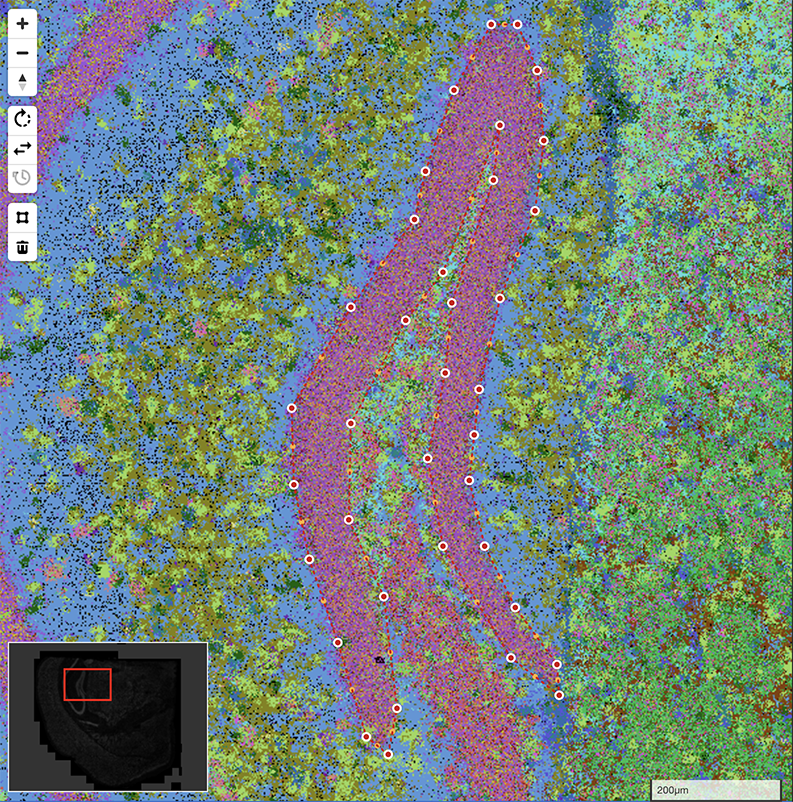
1. Edit Polygon Vertices
Click anywhere on the polygon border to activate Edit Mode.
- 1) Drag the white anchor points to move vertices.
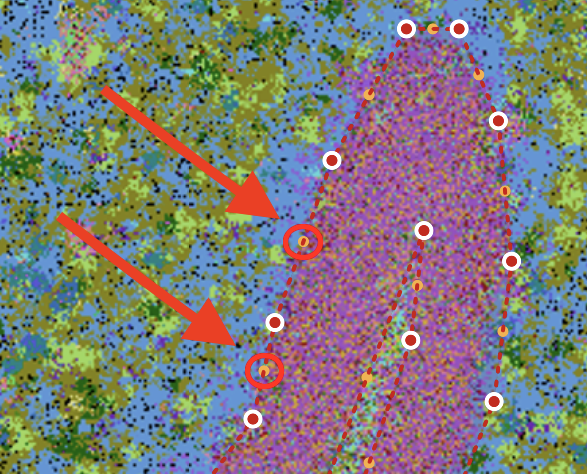
- 2) Drag the yellow midpoints to add new vertices.
-
3) Select a vertex and press Delete (or use the trash icon) to remove it.
When Edit Mode is active, yellow midpoints appear between vertices (as shown below), allowing you to refine the shape with higher precision.
2. Sculpt with Brush and Eraser
You can also use freehand tools from the Map Toolkit to sculpt the shape:
- Brush Tool: Paint along edges to expand the shape or bridge separated tissue regions. Use [ to decrease diameter and ] to increase diameter.
- Eraser Tool: Drag across the shape to carve internal holes (e.g. ventricles, lumen) or remove tissue tears and folds.
- Undo / Redo: Use Cmd/Ctrl+Z and Cmd/Ctrl+Shift+Z in the options bar to revert or re-apply strokes.
- Click Done (or press Esc) when finished.
Related Pages
Concepts
Manual Pages
How-to Guides